Result Viewer
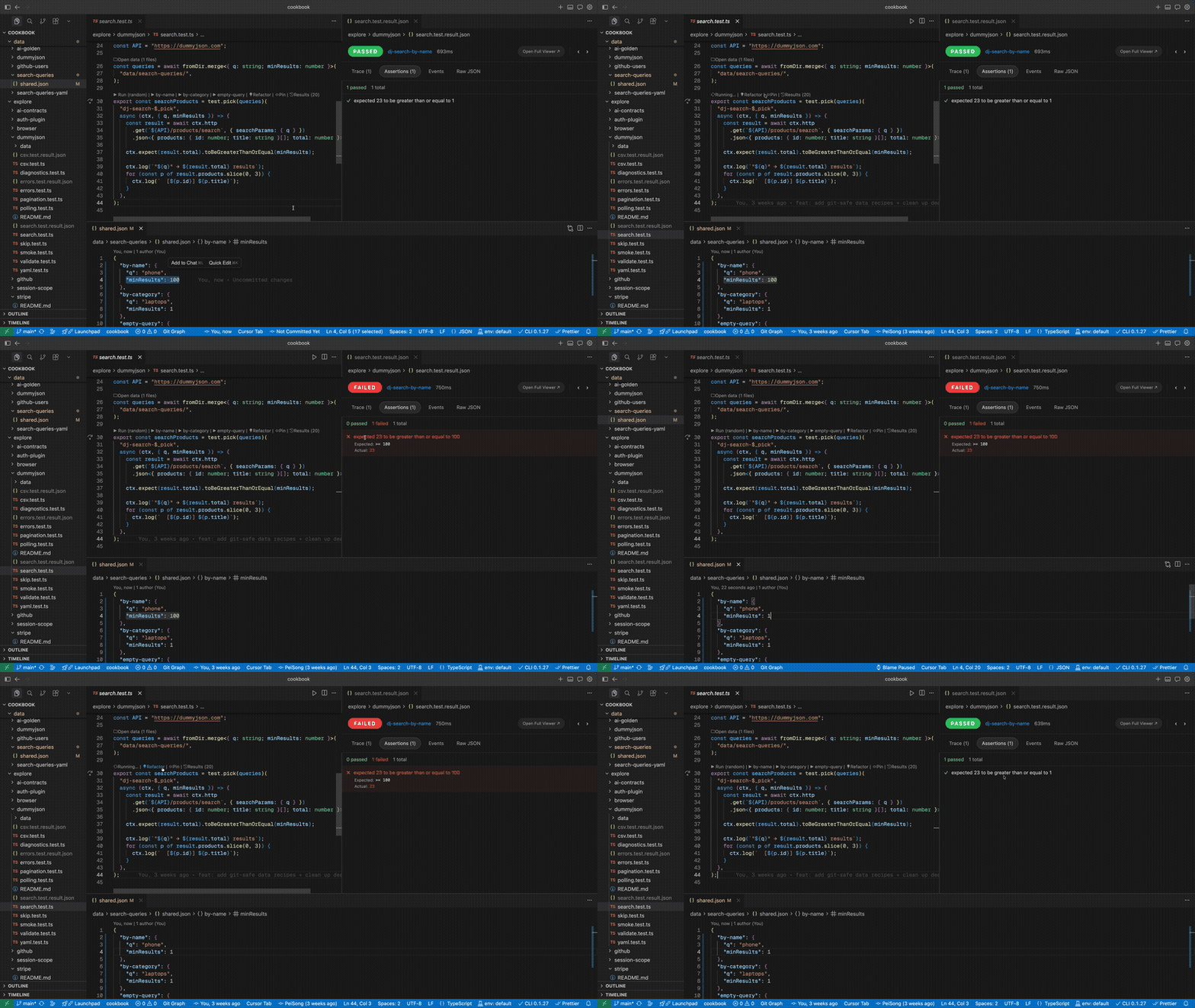
The Result Viewer is a custom editor that opens whenever you view a .result.json file. It replaces raw JSON with a structured UI showing exactly what happened during a test run.
How it opens
- After a run — opens automatically beside your code when a test finishes.
- Double-click any
.result.jsonfile. - CodeLens — click the
Results (N)button above a test definition to open its latest result. - Command Palette —
Glubean: Open Latest Result.
Single test mode
When the result contains one test, the viewer shows:
Header
- PASSED / FAILED status badge (green / red)
- Test name and execution duration
- Newer / Older navigation arrows to browse history
Tabs
| Tab | Content |
|---|---|
| Trace (N) | HTTP calls in execution order. Multiple calls show a request list on the left; select one to see Request/Response headers and body on the right. Each request has a Copy as cURL button. |
| Assertions (N) | All assertions with pass/fail status. Failed assertions show expected vs actual values. |
| Events | Full event timeline — log, assertion, warning, error, trace, step_start/end. |
| Raw JSON | The raw .result.json with CodeMirror syntax highlighting. |
Multi-test mode
When the result contains multiple tests (file or project run):
Summary Bar
Aggregated stats: passed / failed / skipped counts, total tests, total duration, HTTP request count, assertion count, and run timestamp.
Rerun Failed
A Rerun Failed (N) button appears in the header when failures exist. Click to re-run only the failed tests.
Tabs
| Tab | Content |
|---|---|
| Tests (N) | Test list with status, name, tags, failure reason, and duration. |
| Trace | Left panel lists all tests (with status, call count, duration); select one to see its HTTP calls. |
| Assertions | All assertions across all tests. |
| Events | All events across all tests. |
| Raw JSON | Raw source. |
Jump to Source
Click any test name in the Result Viewer to jump to its definition in the source file. This works for both:
- Adjacent results (
.result.jsonnext to the test file) - History results (inside
.glubean/results/) — the viewer resolves the source file from the result path.
Copy as cURL
In the Trace tab, click Copy as cURL on any request to copy it as a ready-to-run shell command. Also available from the Command Palette: Glubean: Copy as cURL.
Result history
The extension keeps per-test history for local editor runs under:
.glubean/results/{fileName}/{testId}/{timestamp}.result.jsonEach test keeps up to N history files (default 20, configurable via glubean.resultHistoryLimit). Older results are automatically deleted.
Full CLI or package-script runs also write the latest project result to
.glubean/last-run.result.json. Open that file directly, or use
Glubean: Open Latest Result, when you want to inspect the most recent
project-level run rather than a single test’s local history.
Navigation
Browse history with keyboard shortcuts or the header arrows:
| Shortcut (Mac) | Shortcut (Win/Linux) | Action |
|---|---|---|
Cmd+Alt+[ | Ctrl+Alt+[ | Previous (older) result |
Cmd+Alt+] | Ctrl+Alt+] | Next (newer) result |
Also available from the Command Palette: Glubean: Previous Result / Glubean: Next Result.
Diff with previous run
Compare the two most recent results side by side:
- Open the Command Palette.
- Run
Glubean: Diff with Previous Run.
VS Code opens its native diff editor. The label shows the test name and, for pick tests, the pick key. Requires at least two previous runs.
Clean all results
Run Glubean: Clean All Results from the Command Palette to delete all history in .glubean/results/. A confirmation dialog appears first.
View Source toggle
Switch between the Result Viewer and raw JSON:
- Result Viewer active — the editor title bar shows a View Source button (
$(go-to-file)). Click to open the raw JSON editor. - Raw JSON active — the title bar shows a View as Result button (
$(open-preview)). Click to switch back.
What’s next?
- Running Tests — All the ways to trigger runs
- Environments & Secrets — Configure which environment to run against
- Debugging — When traces are not enough