The Glubean Editor Experience
You do not need a separate request GUI for local authoring. Glubean gives you a visual layer inside the editor you already use: run buttons, data navigation, environment switching, result inspection, and debugging over source-authored checks.
For day-to-day developer work, open a discovered *.test.ts/js/mjs file and run
from the IDE. When the evidence should be shared, upload it to Cloud and review
it with the team. For contract/workflow-first work, keep authoring in source
and use MCP, package scripts, or the CLI for the full project run.
CodeLens: actions on every test
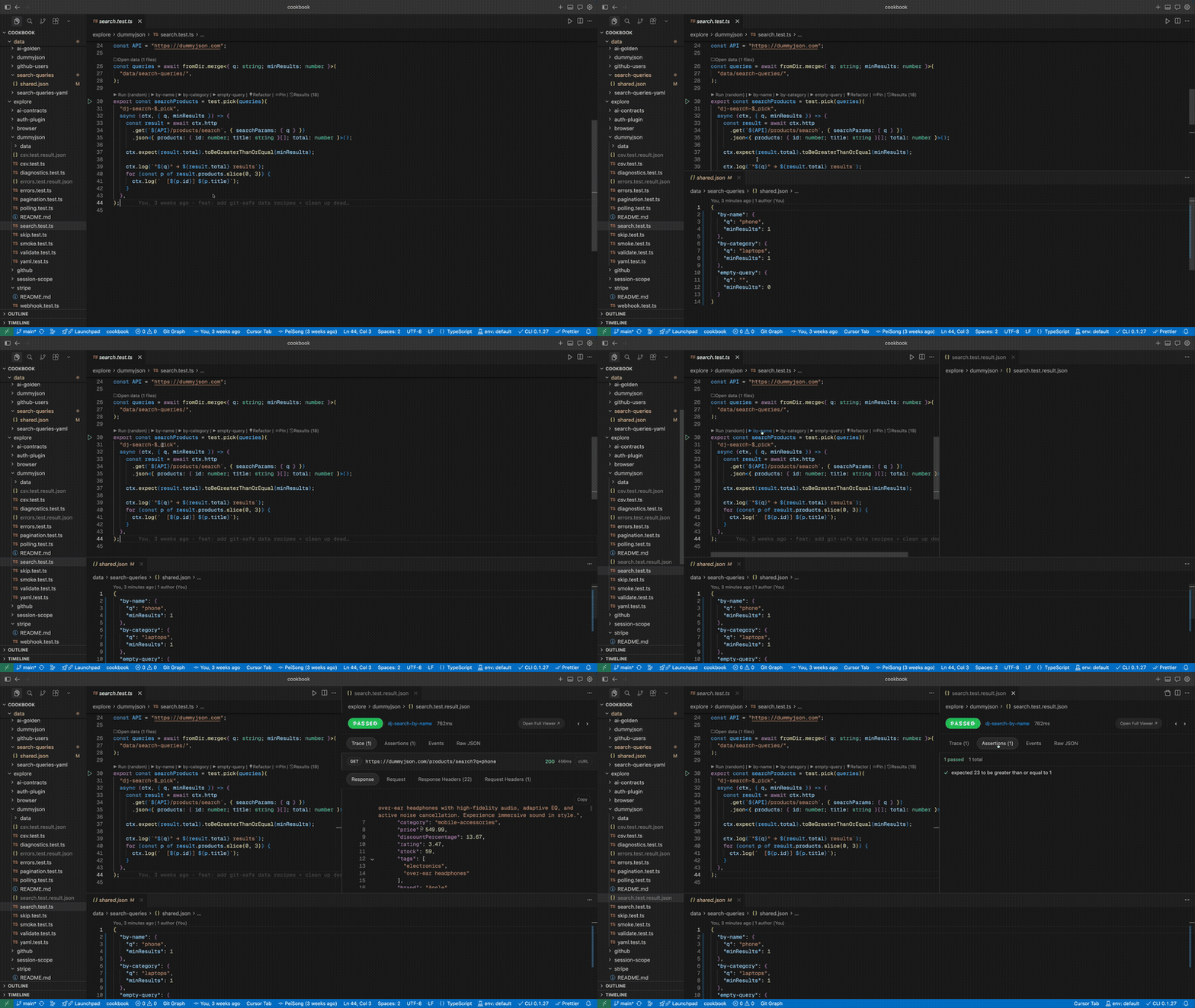
Glubean injects actionable buttons directly above each test definition:
- ▶ Run — execute the test with one click. Results appear instantly in the Result Viewer.
- Pick — when a test uses
test.pick, buttons appear for each named case. Run just the one you care about. - Open Data — jump to the data file backing a
test.eachcall. Edit cases without hunting through the file tree. - $(pin) Pin — bookmark tests you run often. They show up in the Glubean Panel for one-click access.
- $(history) Results — open the history for this specific test. Compare previous runs without leaving the file.
You never leave your code. The test, the action, and the result are all in the same viewport.
Result Viewer: instant feedback
When a test finishes, the Result Viewer opens automatically. No manual navigation.
- Trace tab — every HTTP call, in order. Request headers, body, response status, timing. Expand any call to see the full exchange.
- Assertions tab — expected vs actual, side by side. Green checks and red crosses. The failed assertion is the first thing you see.
- Events tab — the complete event stream: lifecycle hooks, logs, metrics, custom events. Everything the test emitted.
- Click to source — click a test name in the viewer and jump straight back to the line that produced it.
- History navigation — prev / next buttons to walk through past runs. VS Code diff to see what changed between them.
You run a test and immediately know what happened, what failed, and why. No log parsing. No scrolling through terminal output.
Glubean Panel: your testing dashboard
The Glubean Panel lives in the sidebar and organizes your work:
- Pinned Tests — your most-used tests, always one click away. Like browser bookmarks, but for test execution.
- Pinned Files — whole test files you run often. Open them or run every test in the file from the panel.
- Tasks — run groups of tests as a batch. Useful for smoke suites or pre-deploy checks.
Pin a test once, run it every day. The panel remembers your workflow so you don’t have to.
Environments: switch context in one click
The status bar shows your active environment. Click to switch between .env,
.env.staging, .env.prod — or any custom environment file.
- Hover preview — hover over a
ctx.vars.require("API_URL")call and see the resolved value from the current environment. No guessing. - Secret masking — values from
.env.secretsare masked in hover previews and redaction-aware result surfaces. Keep real credentials in.env.secretsand avoid logging derived credential strings.
Switch from staging to production, rerun the same test, compare results. Two clicks.
Diagnose: instant troubleshooting
Something not working? Run Glubean: Diagnose from the command palette.
The extension checks your project setup, SDK version, environment files, runner configuration, and common pitfalls — then tells you exactly what’s wrong and how to fix it. No Stack Overflow required.
The sum of these parts
CodeLens keeps actions next to code. Result Viewer gives instant structured feedback. The Panel organizes your daily workflow. Environments switch context without editing files. Diagnose catches problems before you waste time.
Together: the convenience of editor controls, the flexibility of code, and the reliability of CI — in the local plane where developers and coding agents already work.